![HMLogo RGB high res.png]](https://knowledgebase.hollandmechanics.com/hs-fs/hubfs/HMLogo%20RGB%20high%20res.png?height=48&name=HMLogo%20RGB%20high%20res.png)
Files can become corrupted in several ways. A sudden voltage drop or repeatedly teaching the same file many times can cause a file to become corrupted.
To achieve the ideal solution, follow the steps below:
Press CTRL + ALT + DEL on the keyboard.
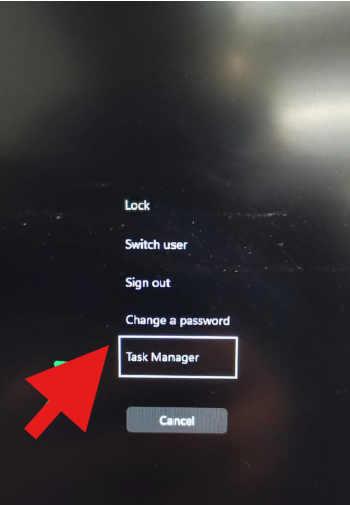
Open Task Manager.
In the upper-left corner, locate the File menu and click on it.
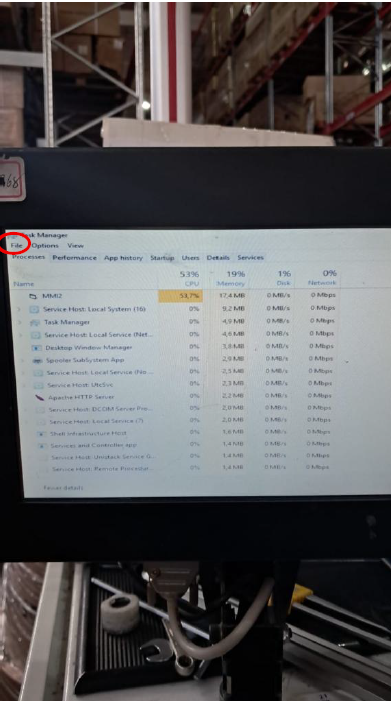
Select Run new task.
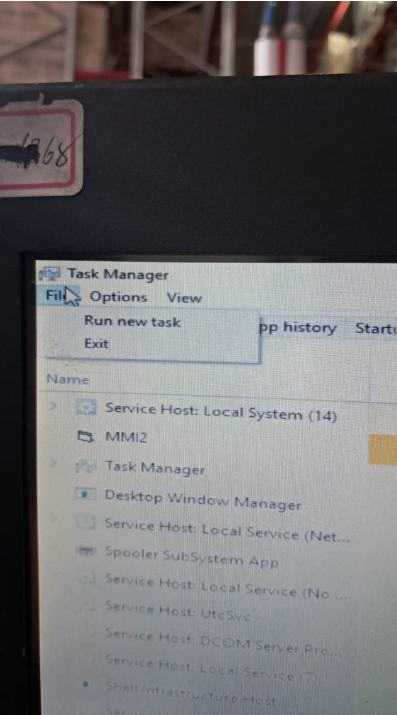
In the Open field, enter explorer. If it is not already displayed, type explorer manually, then click OK to confirm and open the new window.
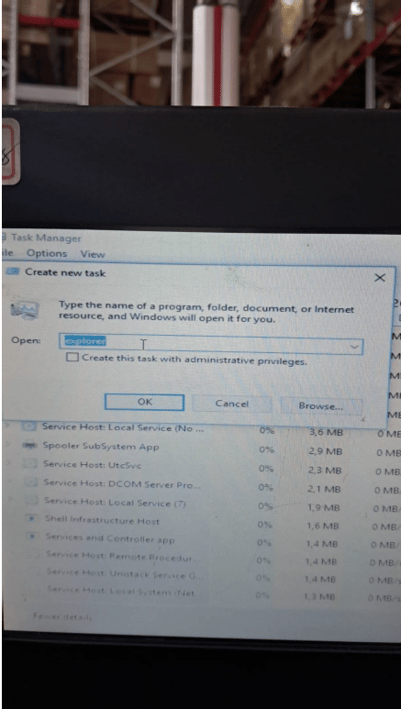
After clicking OK, the screen may turn completely black, and a minimized window may appear in the lower-left corner. Click the Restore/Maximize button (the middle button) to expand the window. On some machines, the window opens normally and this additional step is not required.
After completing this step, the required window will be displayed.
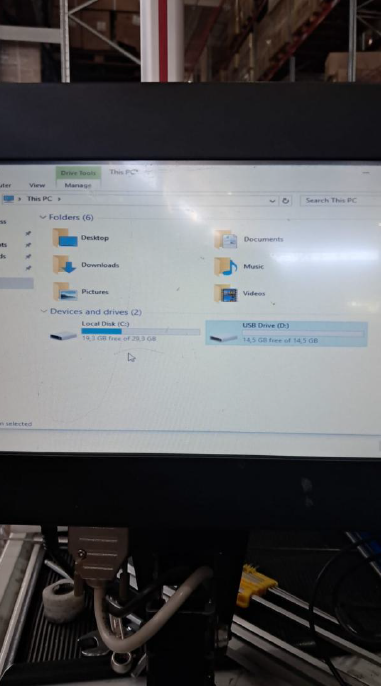
Now, we will search for the Wheel Files folder and, inside it, locate the file that is possibly corrupted.
Pay close attention to the following step. Depending on the machine configuration, the wheel files may be stored on an external USB drive or on an internal USB device. In the example shown in this manual, two drives are displayed: Local Disk (C:) and Local Disk (D:). The Local Disk (D:) corresponds to the external USB drive. Before proceeding, verify with the machine operator or maintenance team whether the machine was originally equipped with an external USB drive. In some cases, the USB drive is mistakenly removed because it is assumed to have been left connected accidentally. However, this USB device is an essential part of the machine and may contain all stored wheel files. If it is confirmed that the machine was not originally equipped with an external USB drive, continue with the following steps.
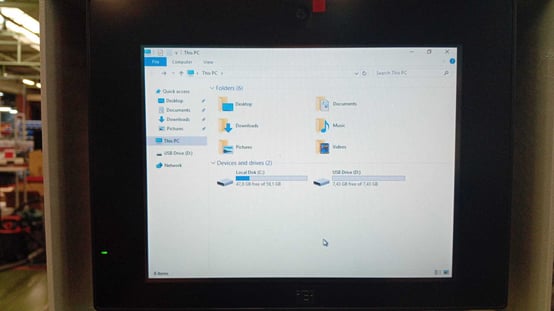
click on USB Drive (D:)
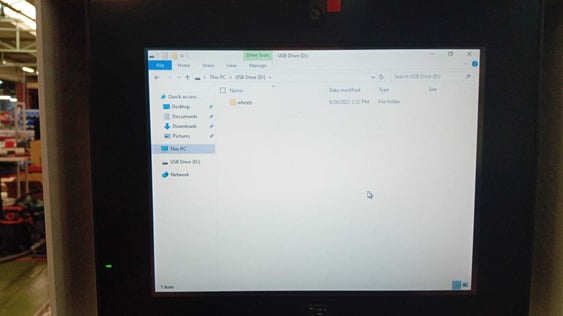
The "wheels" folder is where all the saved wheels are located. Click on the folder.
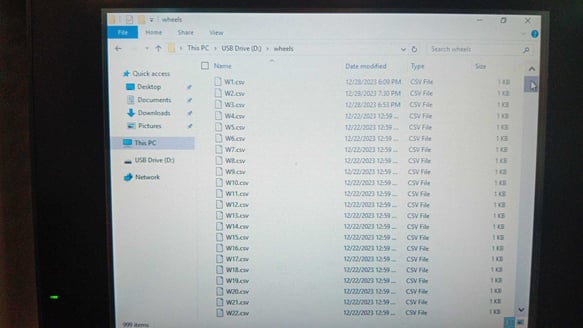
Now you have to open the files one by one to find the corrupted one.
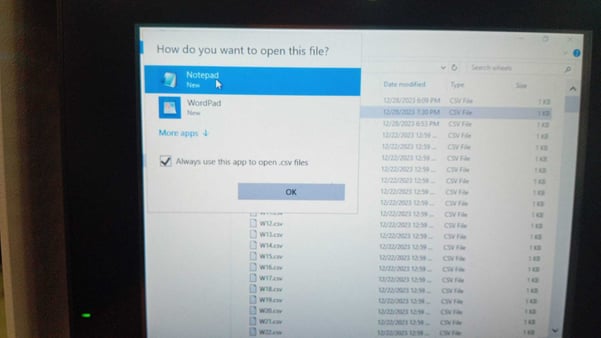
in case the machine ask '' How do you want to open the file ?'' select Notepad
If you open the files one by one and encounter a corrupted file, it will be empty—as shown in the example below, where one file contains data while the other is empty; the empty one is the damaged file.
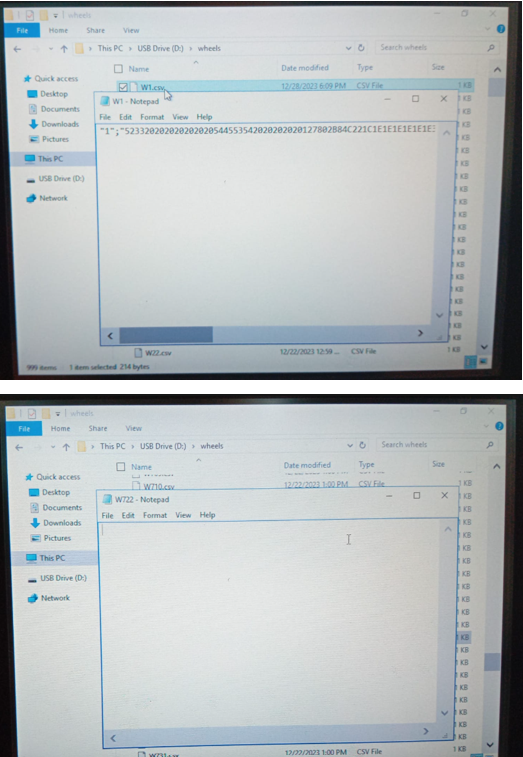
To resolve this, we'll have to copy the files from any folder that is full and place them into the empty folder.
Once copied, the template will be identical to the one in the source folder. Pay attention to the first number that appears—for example, "1". Simply replace that "1" with the number of the folder you are copying to; if you are copying to folder 5, enter "5". After that, save the changes by pressing Ctrl+S. Turn the machine off completely and turn it back on; the files should now be restored.